Android New Chats
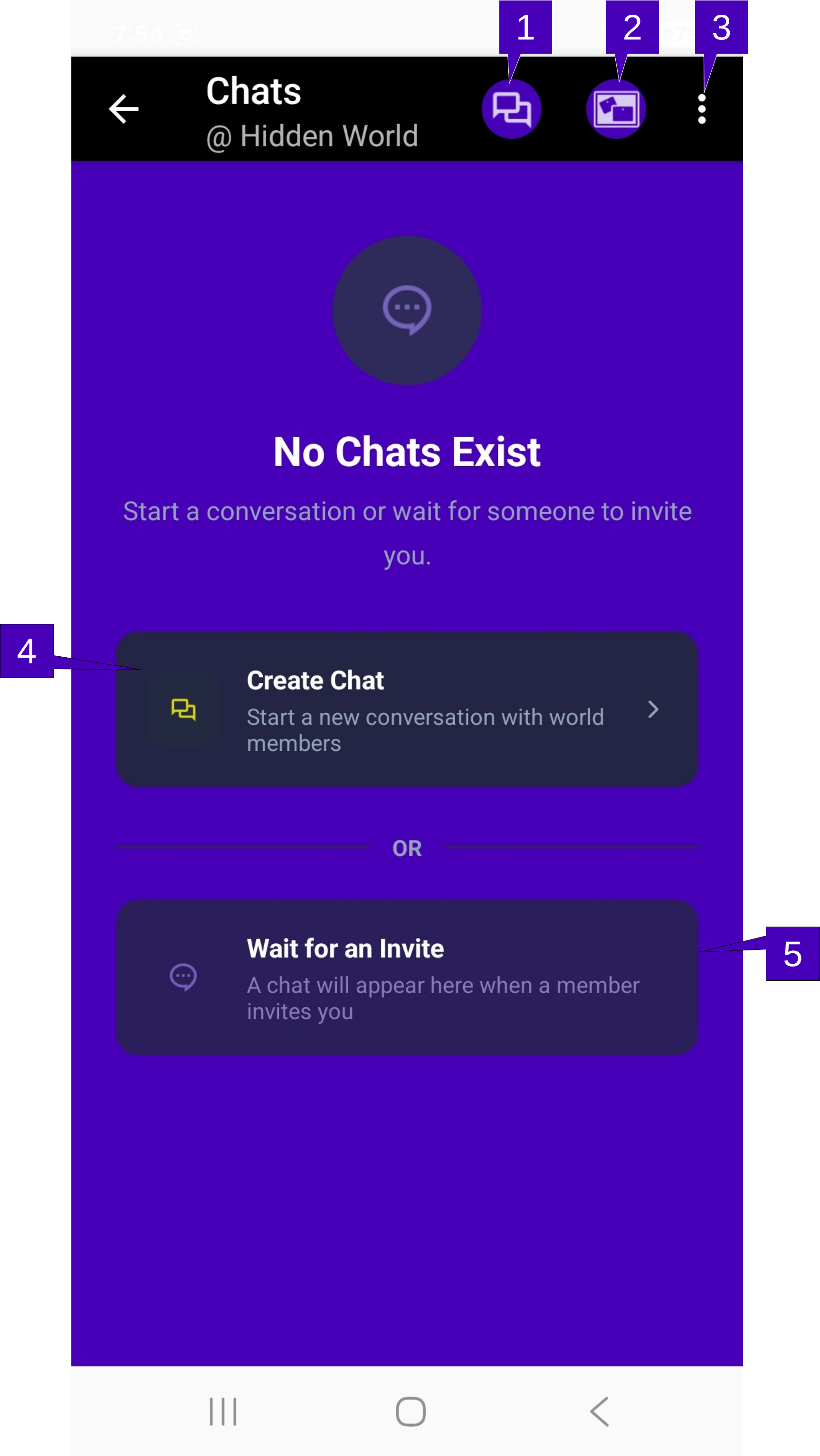
1. Create Chat. A tap here will open the Create Chat screen and allow the user to start a new chat.
2. Create Announcement. Note that this menu option is only available to devices connected to the hub as an Administrator or Owner (q.v.). Please refer to the GalixiHub documentation for specifics on how to enable devices for these permission levels. A tap here will open a modified Messaging screen and allow the user to create a new announcement. an Announcement is a special chat that sends to all members a modified message on whatever the Announcement creator chooses. No other member of the network may respond to an Announcement; it is in-effect a one-way chat from the owner or administrator of the world to all its members.
3. Menu Overflow. Herein lie menus for World Profile, Block Members, Re-sync Members, Manage World, and Help. Each one of these menu options are detailed below, and some are only available if the user has Administrator or Owner privileges.
World Profile will open up the Modify World screen. Here the user will see the current world’s device network and port information and may adjust changes to the world network here, along with other world behavior such as mute and avatar profile for this world. Note that modifying the avatar here will ONLY affect the avatar on this world; neither the default avatar settings nor the avatar settings for any other world are affected here.
Block Members allows the user to block another member. Any messages sent from that member will not be displayed to the user. The member being blocked is not notified they are being blocked so will appear as if the user is simply ignoring the member. Any messages sent by that member on any group chat is also ignored.
Re-sync Members will pull from the world all the members, including their full information, and update the local database with these members. In normal operation, whenever a world is entered, only the changes in the member state since the last time the world is entered is sent. However, in some conditions data may be lost while updating due to a poor network connection or other issue. In these cases, GalixiCom and the world running GalixiHub will assume these changes have already been synced and will not send another update. As a result, some member information may be lost. A tap here will force a re-sync of all members, not just the changes.
Manage World is only available to Administrator and Owner permission levels. A tap here will in-effect render the same UI as on GalixiHub, and will allow the device owner to manage the world remotely from GalixiCom. Just about all the management functionality of GalixiHub is replicated here, and for specific details, please refer to the GalixiHub documentation.
Theme which allows the GalixiCom color palate to be adjusted.
Help opens up this page.
4. Create Chat. A tap here performs the same operation as Create Chat (q.v.) in the menu above. With no chats currently created, this button is very visible and present as opposed to a menu selection that a new user would have to search for.
5. Wait for an Invite. This is strictly an informative frame indicating to the user that they may simply wait for a chat or announcement to arrive. There is no button or other action by tapping here.