Android Worlds
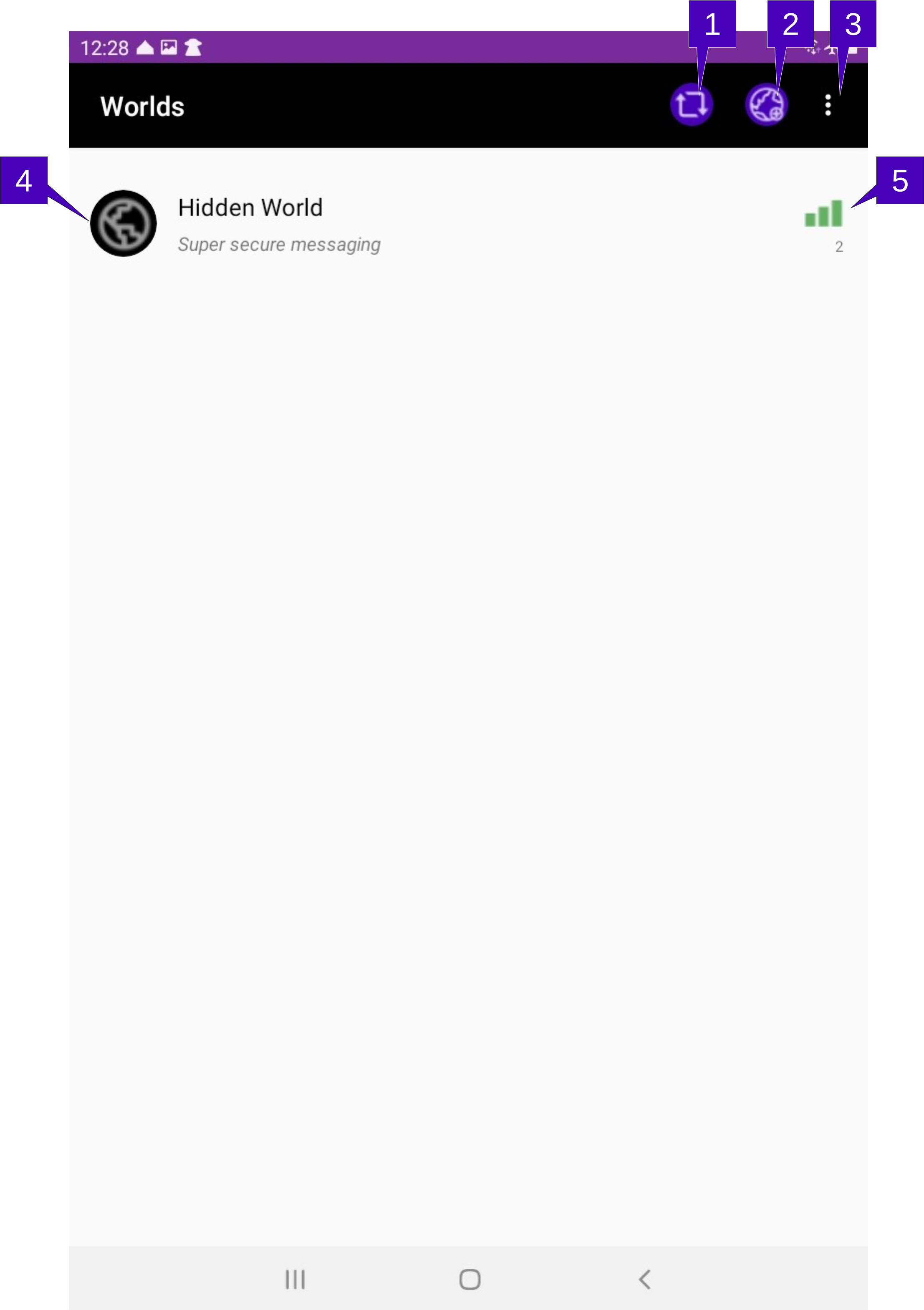
1. Refresh Screen. Tap here to refresh the signal strength and number of members on the world. The Worlds screen statistics are gathered when first shown and not updated automatically. A tap here will re-poll all joined worlds and update the statistics accordingly.
2. Join World. Tap here to pull up the camera to join a world via QR code. Note that only a QR code generated by an instance of GalixiHub will be read here; if a non-GalixiHub generated QR code is scanned, nothing will happen. Once scanned, the world, using the default avatar profile, will be automatically joined. If a code is required to enter the world, the user will be prompted to enter.
3. Menu Overflow. Herein contains the ability to Join World (Manually), *Delete Worlds, Modify Profile, About and Help. Each one of these options is further explained below:
Join World (Manually) allows the user to manually join a world. Joining a world manually will open the Join World screen where the user may enter the device network information of the hosting World.
Delete Worlds will create an empty circle will appear next to each world. Tapping the circle or world name will select the world for deletion (as indicated by a now filled red circle), and tapping again will de-select. Multiple worlds may be selected at once. A tap of the DELETE button on the bottom will pull up a confirmation dialog. When a world is deleted, all members, chats and messages associated with that world are permanently deleted from the device. Tap the backspace key to exit delete worlds mode.
Modify Profile changes the default avatar settings. Modifying the default avatar settings will NOT change the member avatar settings for current joined worlds. A change here will impact only the next joined world.
Theme which allows the GalixiCom color palate to be adjusted.
About will open the About GalixiCom screen.
Help pulls up this page.
4. Worlds Joined. All worlds joined are shown in a list. Each joined world will display that world’s image, name and description, as set by the World administrator. Tapping here will allow the member to enter the world and message with other world members. Note that the color of the world name will indicate the permission level of this device on that world. World names in black will indicate Member permission levels, while green indicates Administrator level and purple will be the highest Owner level.
5. World Statistics. The network connection quality to the world, along with the total number of members on the world, are show here. A strong physical network connection to that world is shown with three green bars, a medium connection has two yellow bars while a weak connection has a single red bar. No connection, indicating that the device hosting the world is either off-line or unable to connect to the Internet, is shown by zero red bars and the device name will have a red strike-through. To update this information, tap the “Refresh Screen” button.