iOS Adjust Avatar
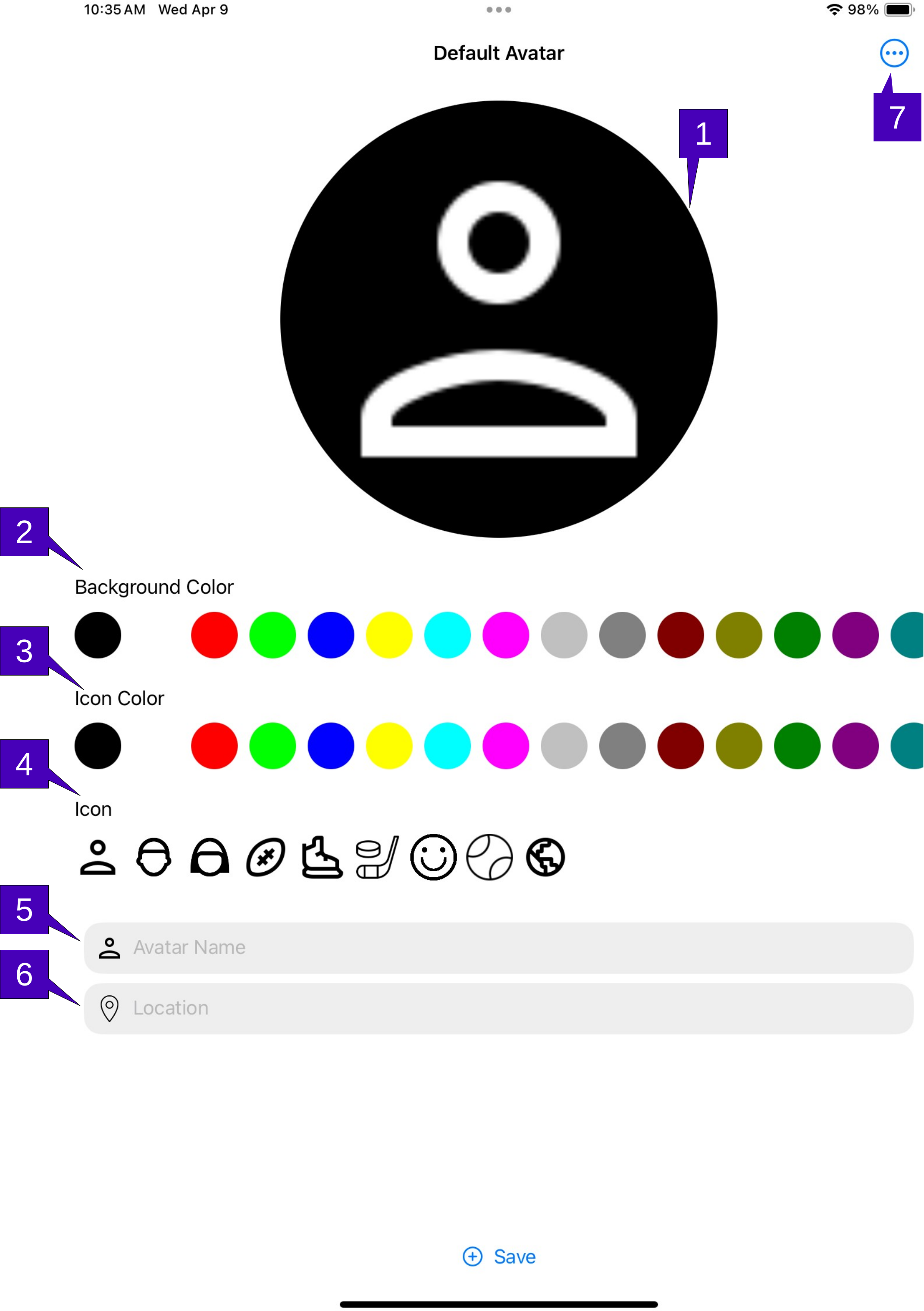
1. Avatar Icon. The icon displayed to all world members for this member when an icon is used as the profile image. Note that if an image is selected (either via the camera or image gallery), this icon is used as a back up and is shown on all other world members devices if there was an issue with transferring images.
2. Background Color. The background color for the icon.
3. Icon Color. The color used for the icon.
4. Icon. The icon used. Note that these icons are integrated into all releases of both GalixiHub and GalixiCom to ensure operation. There is no way via the icon option to add icons to this list; if a different icon is desired, create a .png of the image, install into the Android image gallery and use the select image option in Create Avatar.
5. Avatar Name. Enter the name to be used as the avatar here. This is how the member will be seen by all members. Note this must be a unique name on the world; if a name is chosen that already exists, the member will be asked to chose another.
6. Location. Enter the avatar’s base location here. This can be the actual location, or a fictional one, as it is a simple string and not used anywhere other than to provide some color for the member’s avatar.
7. Menu Overflow. Herein lie a menu for help, which opens up this page, Theme which allows for a new color schema